Hi there!
Spring is finally in full swing, and we are back with a fresh update for Starlify!
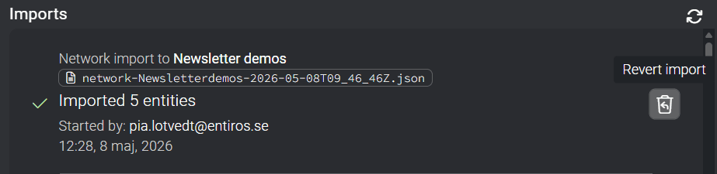
Have you ever imported data into Starlify, only to realize the mappings were slightly off, or the structure wasn't quite what you intended? Until now, you could only handle this by manually deleting entities and then importing again. With this release, we are introducing an easy way to revert the changes caused by an import!
In addition to this, we have also introduced a handy new search filter. You can now search for entities last modified within any given timespan!
Let’s take a look 👇
↩️ Revert your import jobs
You can now undo (revert) an import job to roll back the changes it introduced. Instead of spending time manually hunting down and repairing incorrect data, you can simply revert the job and try again.
What does it cover?
Reverting can undo almost everything touched by your import back to its previous state recorded in the history logs, including Systems, Services, Contracts, Flows, Custom Attributes, BIR/SIR tables, and mappings.
⚙️ How it works:
- True to reality: The rollback doesn't just look at your original import file; it operates on the exact entities that were actually processed during the job, taking into account what they looked like before the import and ensuring a more consistent revert.
- Runs in the background: Have a massive import to revert? No problem. The revert process runs quietly in the background as an asynchronous job, allowing you to continue working in Starlify without locking up your screen.
- Clear traceability: Reverting an import creates a brand-new job record in your history. Your original import log remains intact, so you always have a clear trail of what happened and when.
🧠 Why it matters
Being able to easily revert imports gives you more freedom to experiment, update bulk data, and run automated import jobs without risking introducing hard-to-fix errors in your workspace. If something isn't right, you now have a mechanism to rewind your workspace to its previous state without having to manually pick apart the data.
🛡️ Best-effort rollbacks and clear reporting
We designed this feature to help you safely revert changes, but because integration landscapes are highly connected, reverting an import is a best-effort operation. Unintended effects or partial rollbacks can sometimes occur, especially if the data has been modified by other users or jobs since the original import.
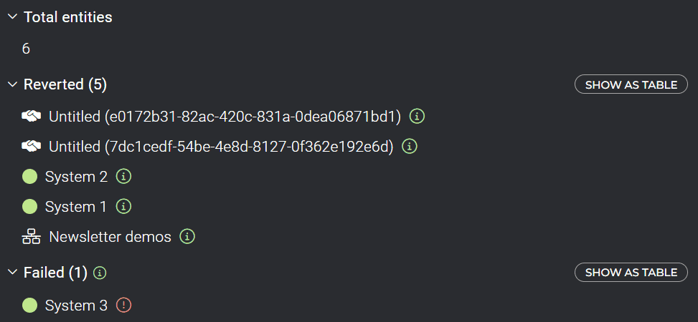
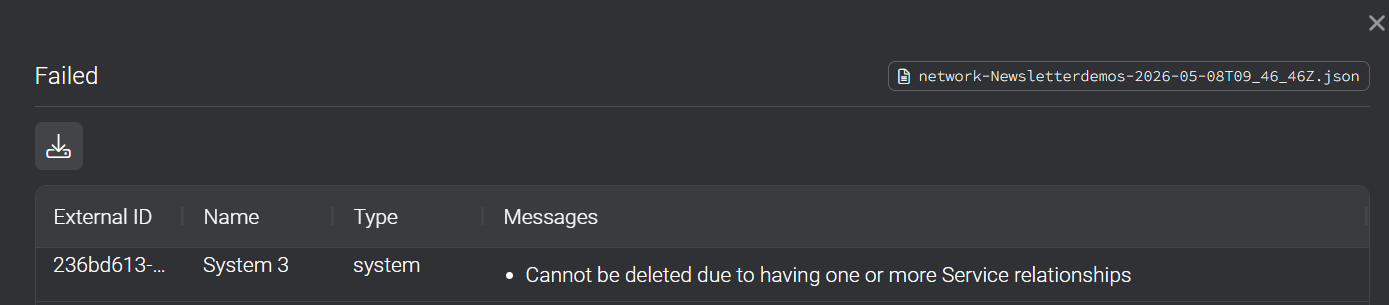
- Dependency Protection: If you imported a new entity and subsequently built new relationships on it (like adding a new connected contract or reference manually), Starlify will block the deletion of that entity to protect your recent work. Because of this, certain items might be skipped during an undo.
- Detailed Revert Reports: Because rollbacks are best-effort, the post-revert report is crucial. Once the undo is complete, you get a clear, actionable report showing what was successfully reverted, what failed, and details on any skipped items so you can make manual adjustments if needed.
- Confirmation Checks: A confirmation modal ensures you never trigger a rollback by accident.
|
🔎 How to undo an import Rolling back is straightforward:
(Note: We have also updated our Help Center with full documentation on how revert works!) |
📆 Search by last modification date
It is now finally possible to quickly find the Starlify systems, contracts, services or other entities that have been updated recently!
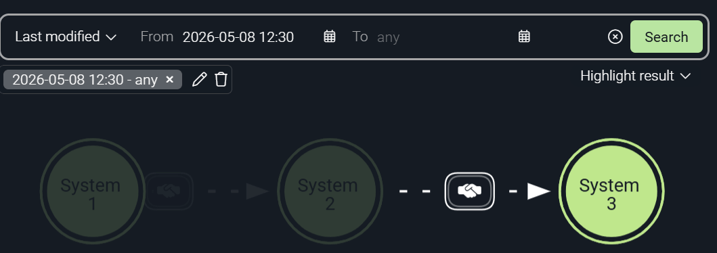
We've expanded our search capabilities to allow you to search for nodes that have been modified within a specific timespan. Just enter your desired date range, and Starlify will find all entities that were changed during that period.
⚙️ How it works:
In the search bar dropdown menu, select "Last modified". Then you can enter the time range you are interested in.
🧠 Why it matters
This makes it incredibly easy to track recent activity across your landscape. Whether you are auditing recent updates, reviewing an integration teammate's work, or just trying to pick up where you left off a few days ago, this filter helps you cut through the noise and find exactly what is fresh.
As always, we’d love your feedback
Try it out and let us know what you think 💬